


Some VamTam themes use an Elementor Popup as a mega menu. The popup comes ready with the demo import, including its display conditions, so in most cases you only need to edit its content. Read “How it works” below if you want to connect the popup to a different menu item or create a new mega menu.


1. How it works: a Popup triggered from a nav menu item
The mega menu is linked to the menu item through a CSS class:
- The popup has the class in its “Open By Selector” field, with a dot in front (for example .mega-menu)
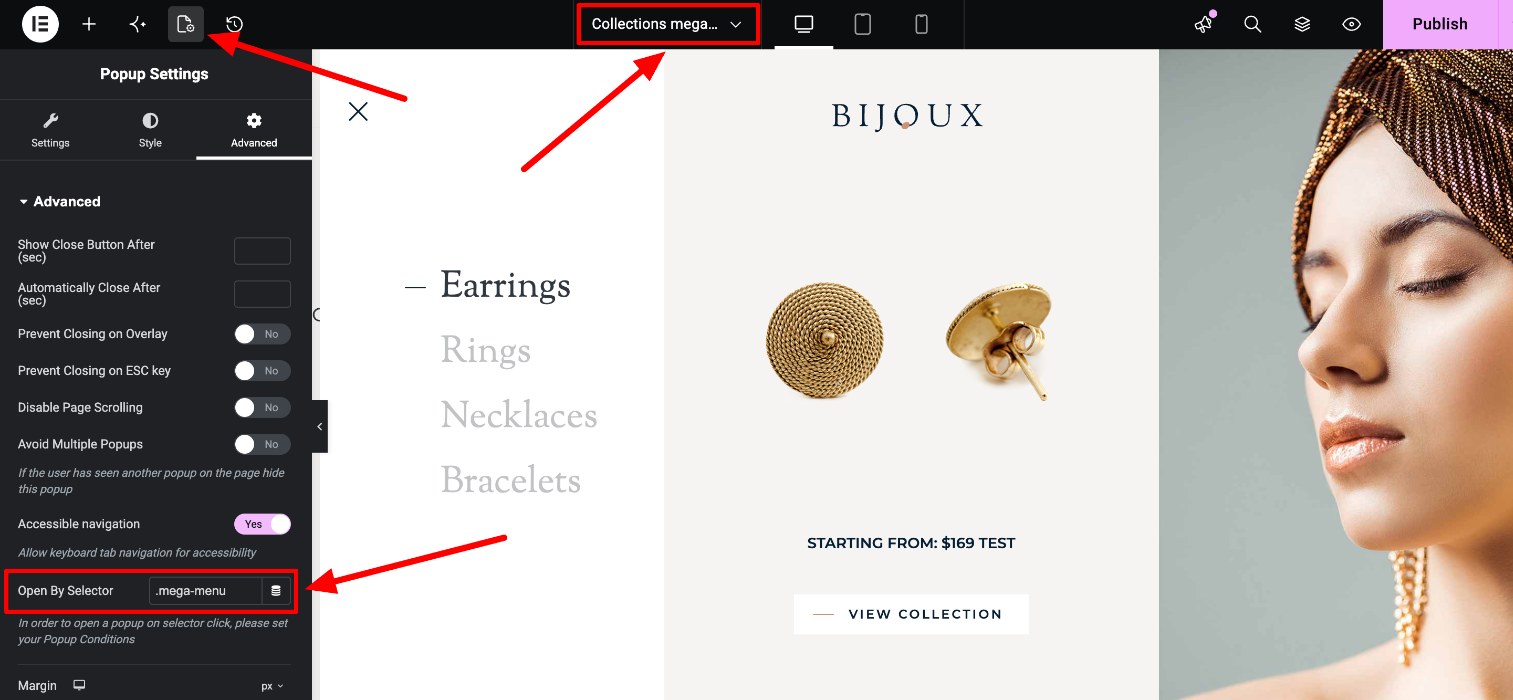
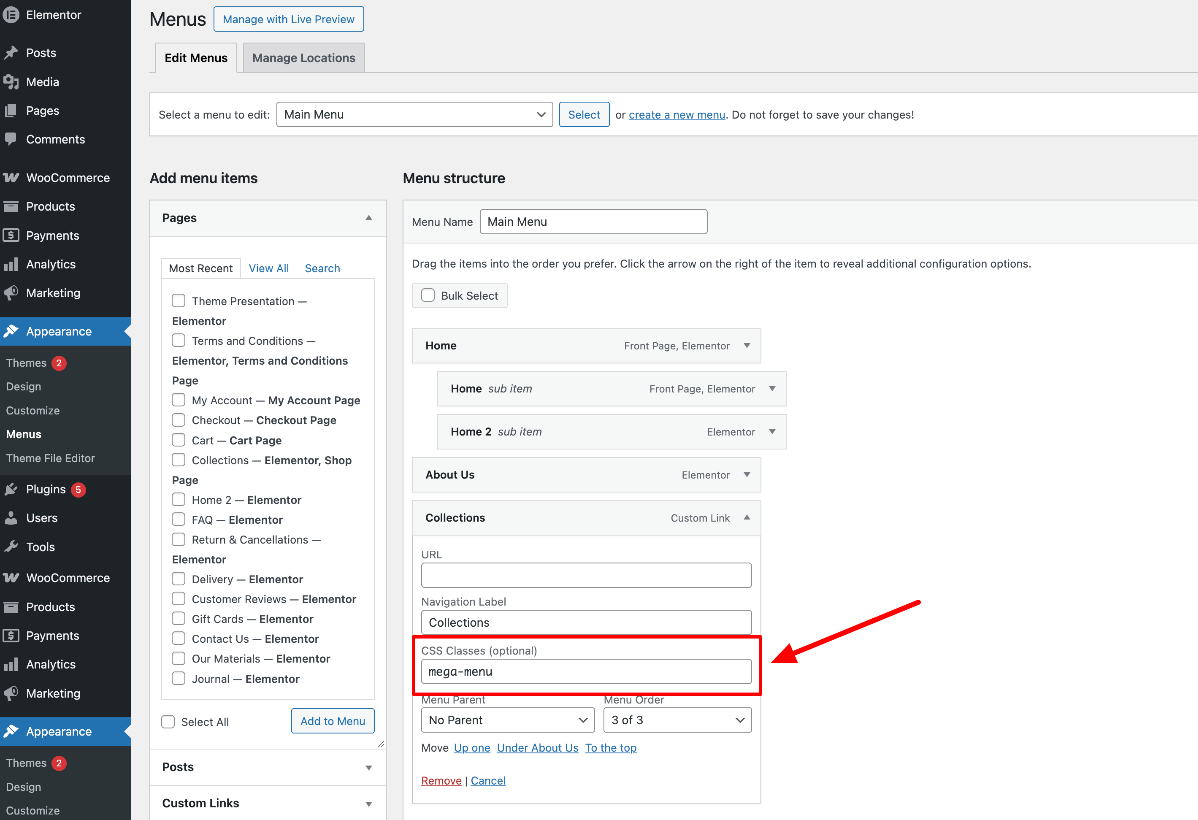
- The menu item has the same class in its “CSS Classes” field, without the dot (mega-menu).
When someone clicks a menu item with that class, the popup opens.
Note: the class names in the screenshots are examples from one of our themes. Your theme may use a different class - you can check it in your popup’s settings (see Step 3).
Troubleshooting
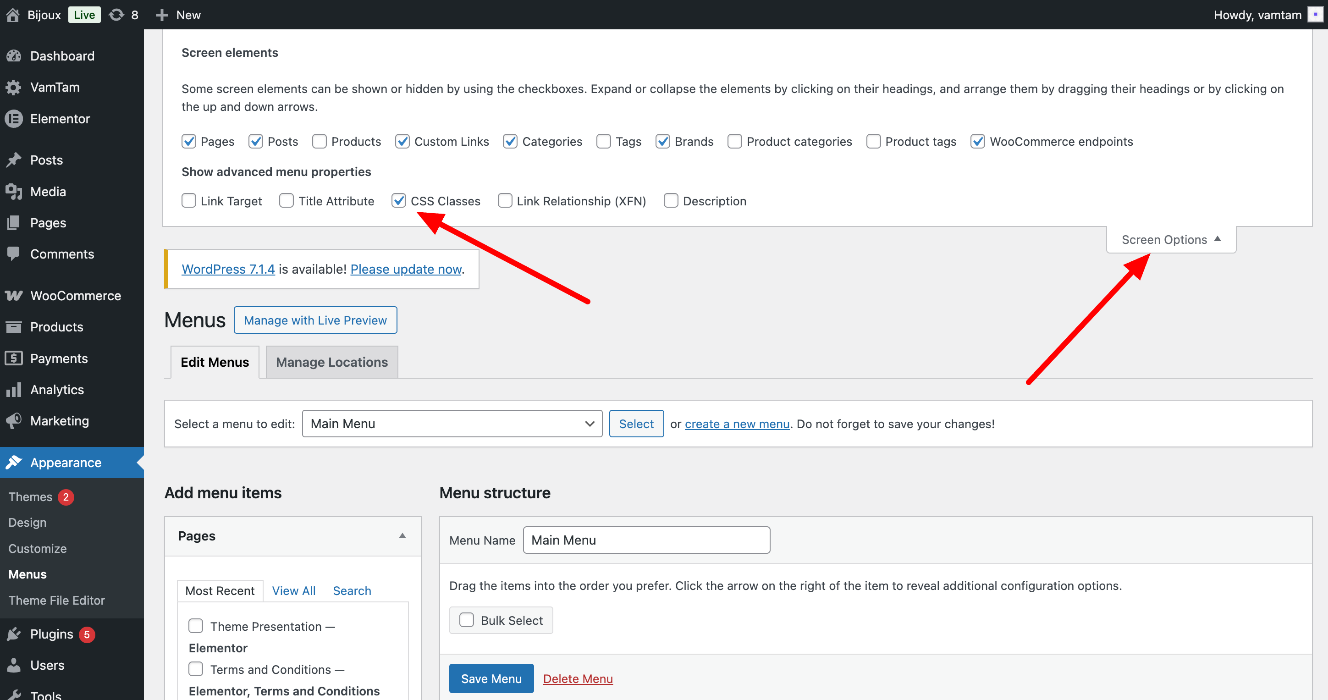
Q: I don’t see the “CSS Classes” field in the menu.
A: The field is hidden by default in WordPress. In Appearance > Menus, click “Screen Options” in the top-right corner and tick “CSS Classes”. The field then shows on every menu item.
Q: The popup doesn’t open when I click the menu item.
A: This usually means the menu item and the popup aren’t linked correctly, or the popup isn’t loading on the page. Go through these checks in order:
- Check that the class in the menu item has no dot, and the class in Open By Selector does have a dot.
- Check that both class names match exactly (same spelling, no extra spaces).
- Check that the popup is published and has Display Conditions that include the page you’re testing.
- Check that no Triggers or Advanced Rules are set for the popup.
- Make sure you edited the menu that is assigned to the header.
- Clear any cache (caching plugin, hosting cache, browser) and test in an incognito window.
2. Edit the mega menu content
The Collections menu opens to a popup named "Collections Mega Menu". Click on "Edit with Elementor" to edit the menu, images, button's link, etc.
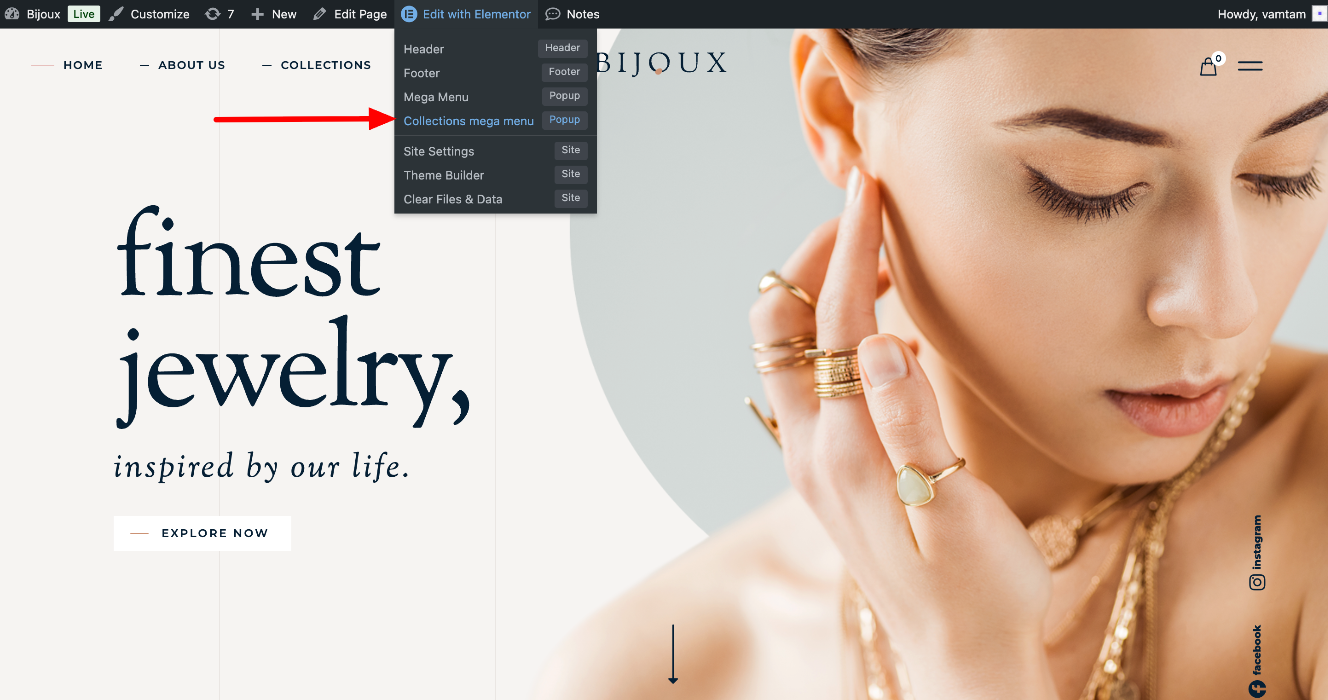
Or go to Dashboard > Templates > Popups.
Find the mega menu popup (for example “Collections Mega Menu”) and click “Edit with Elementor”.
Change the links, images, buttons and text, then click Update.

Edit tab content (themes with tabbed mega menus)
In some themes each item inside the mega menu is a tab, and each tab shows an Elementor template.
To rename the items, edit the tab titles in the popup.

To change what a tab shows, go to Dashboard > Templates > Saved Templates, find the template, click “Edit with Elementor” and update it.

Prefer to watch?
This short screencast shows how to open the mega menu Popup, find the Tabs widget, see which Elementor template each tab uses, and open that template for editing: Watch the screencast: https://www.awesomescreenshot.com/video/57954109?key=1d4d381af6b59d59d9a400c97c9f607e
3. Set it up: connect the Popup to a nav menu item
Check or change the selector
- With the popup open in Elementor, open Popup Settings (the gear icon) and go to the Advanced tab.
- Find the “Open By Selector” field. This is the class the menu item must use. It starts with a dot, for example .mega-menu.
- Make sure no Triggers or Advanced Rules are set in the popup’s Display Conditions, so the popup opens only when the menu item is clicked.
Connect the popup to a menu item
Do this if you build a new menu, rename the menu item, or want the mega menu on a different item.
- Go to Appearance > Menus and expand the menu item.
- In “CSS Classes (optional)”, enter the class from “Check or change the selector” without the dot, for example mega-menu.
- If the item is a Custom Link, use # as the URL so the page doesn’t reload.
- Click Save Menu.
Create an additional mega menu (optional)
- In Templates > Popups, duplicate the existing mega menu popup and give it a new name.
- Edit its content, then open Popup Settings > Advanced and enter a new, unique class in “Open By Selector”, for example .services-mega-menu.
- Publish the popup and set Display Conditions. If the menu is in a site-wide header, choose Entire Site. If the menu is only on one page, choose Singular > Pages and select that page.
- Add the same class, without the dot, to the new menu item (see “Connect the popup to a menu item” above).
Further reading
- Elementor: Trigger a popup from a nav menu: https://elementor.com/help/how-to-trigger-a-popup-from-a-nav-menu-item/ (Elementor’s guide links the popup to the menu item’s URL instead of a CSS class - both methods work, our themes use the CSS class.)
- Elementor: Create your first popup: https://elementor.com/help/how-do-i-create-my-first-popup/
- Guide to Vamtam Elementor Builder
- Elementor: General guide: https://elementor.com/help/elementors-theme-builder/