


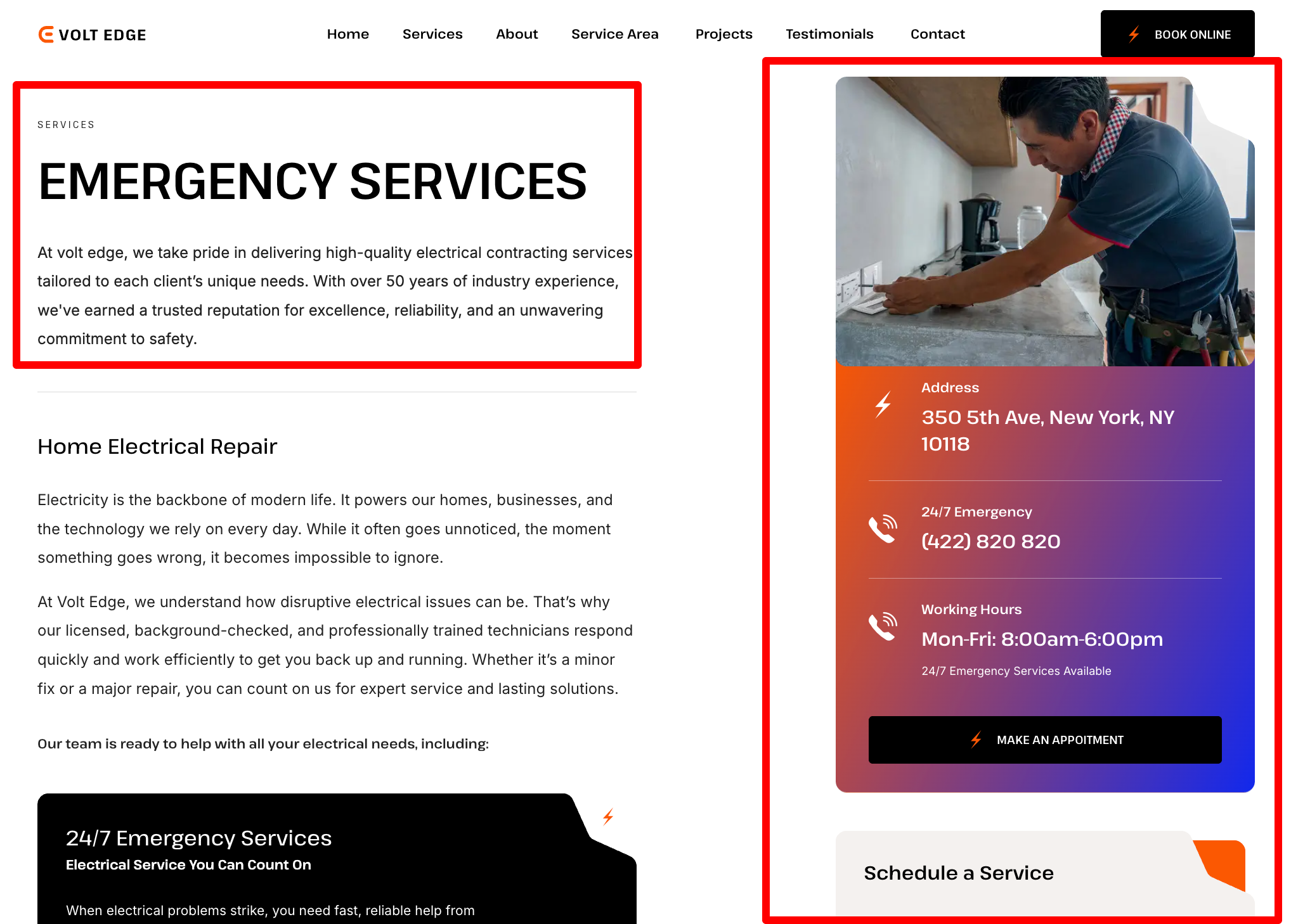
Some of the page's elements aren't accessible in the Navigator. You can locate and edit them in the Single page template. Editing the Single page template will affect the design and layout of all connected pages - check more about the global templates here https://elementor.com/help/single-page-site-part/
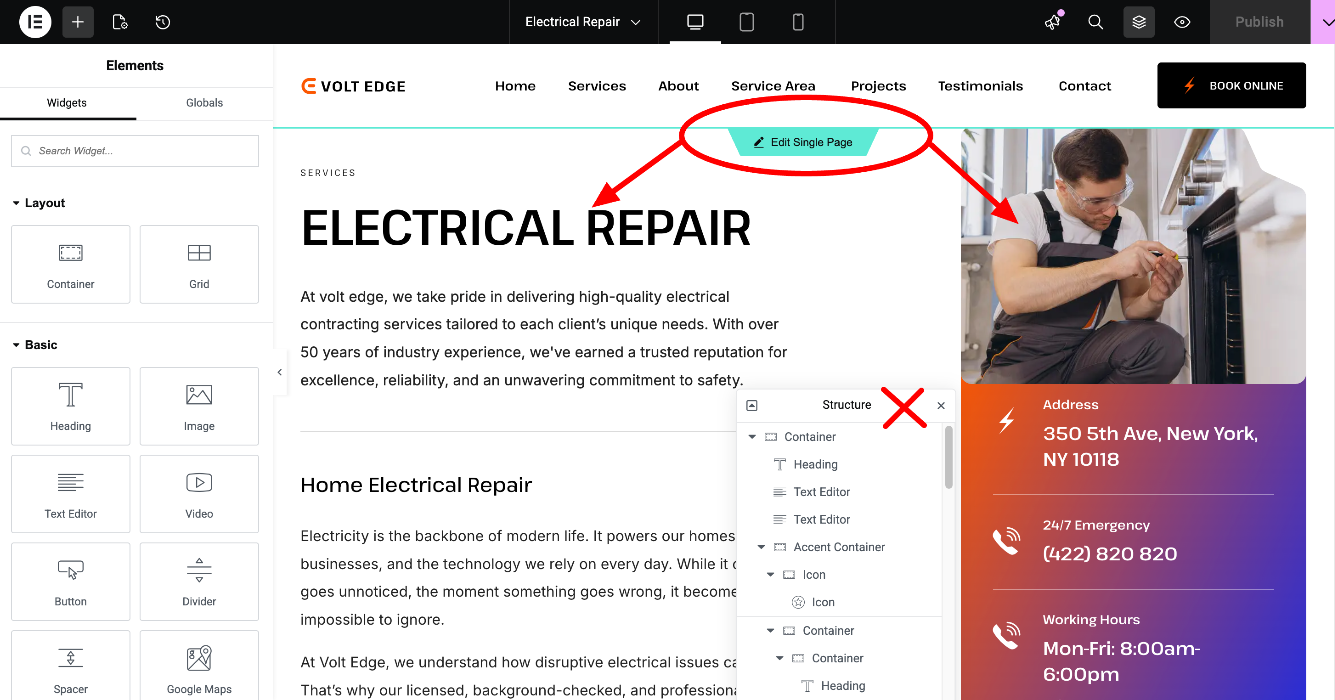
Check the instructions below for how to change the page's elements: title, short text, etc.
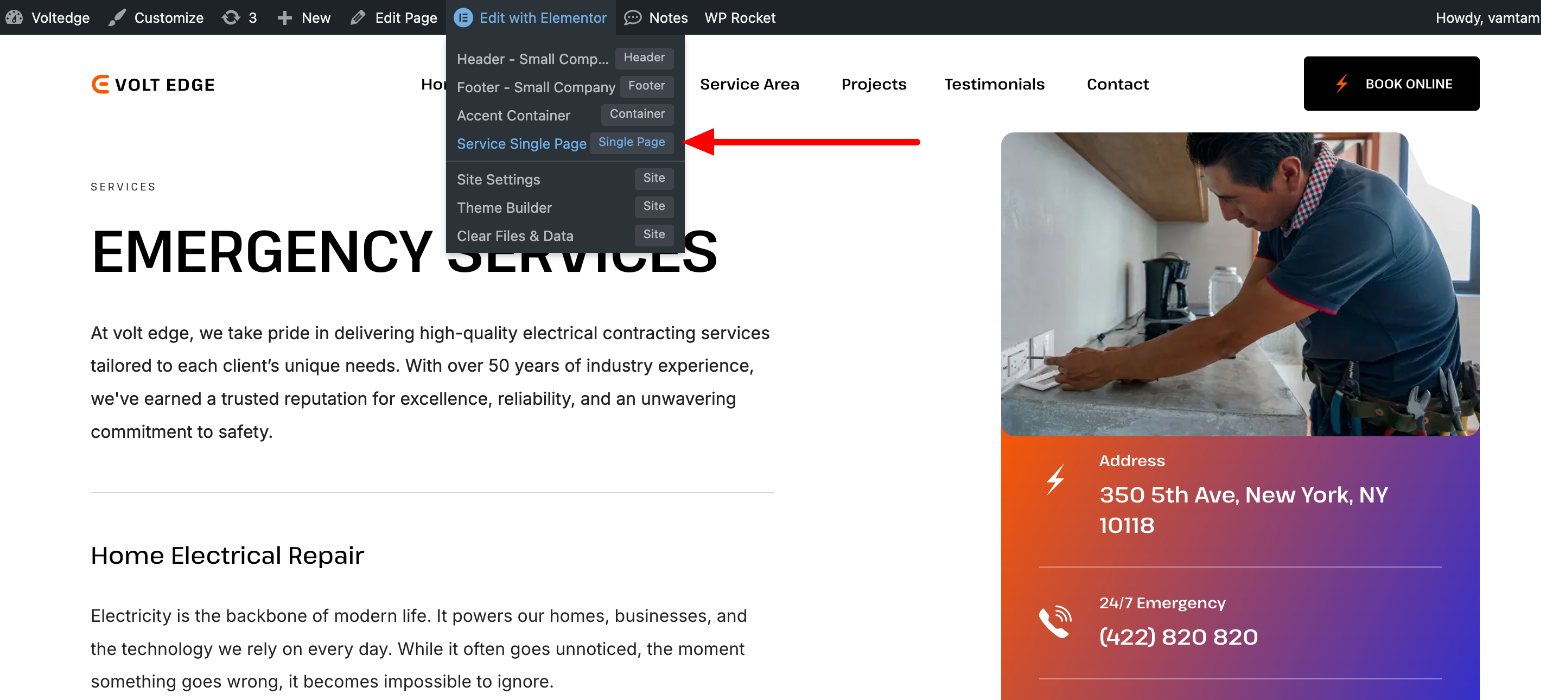
To begin, navigate to the Toolbar > Edit with Elementor > Service Single Page template (the name may vary):
The template usually contains elements that are dynamic tags (https://developers.elementor.com/docs/dynamic-tags/), so they pull the individual content of each page. You must edit them in the page, not in the template!
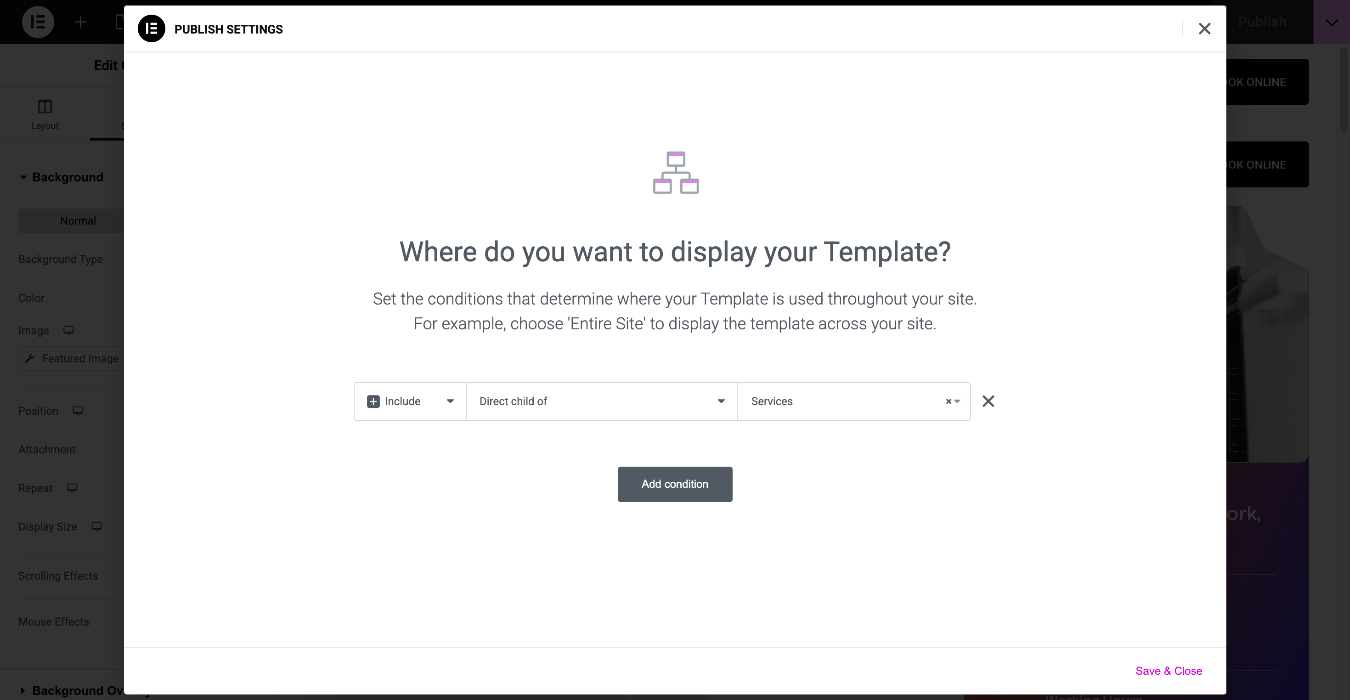
Editing the template will affect all the connected pages - you can check which are they in the template's display conditions https://elementor.com/help/conditions/:
Below, we’ll take a closer look at the dynamic tags used throughout this template.
The template gets automatically the featured image from each page:

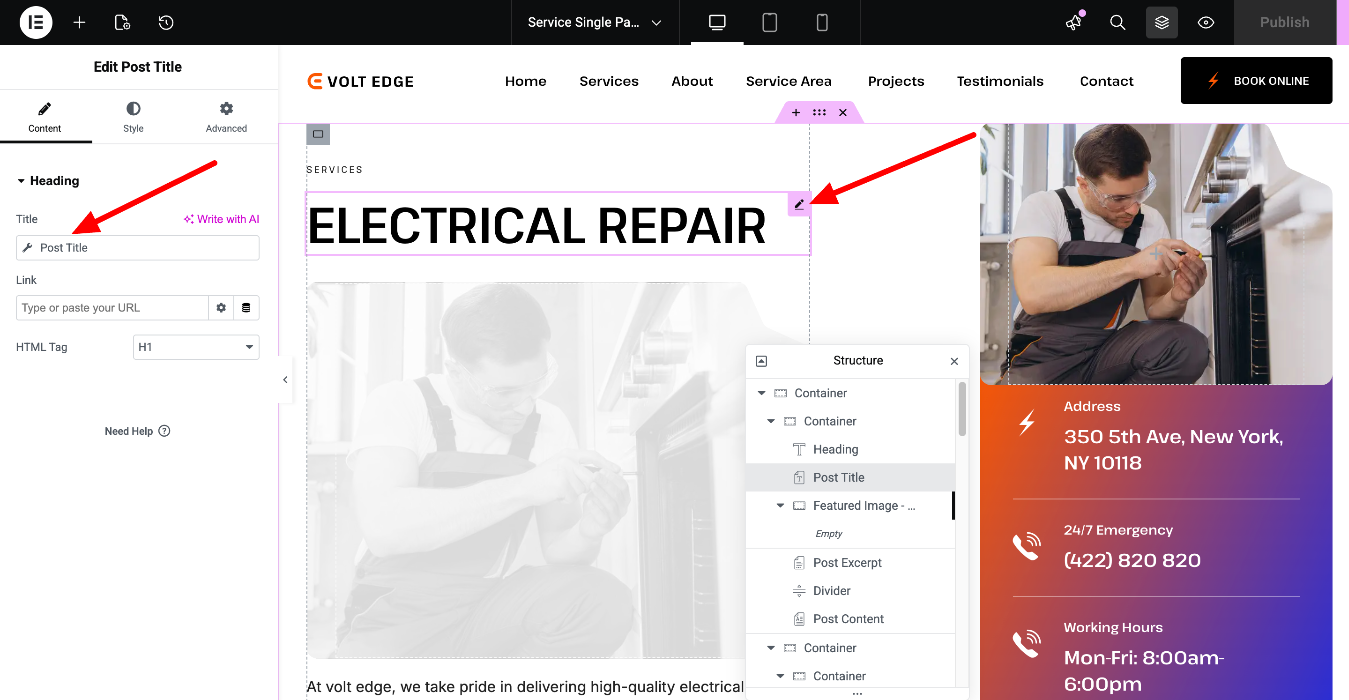
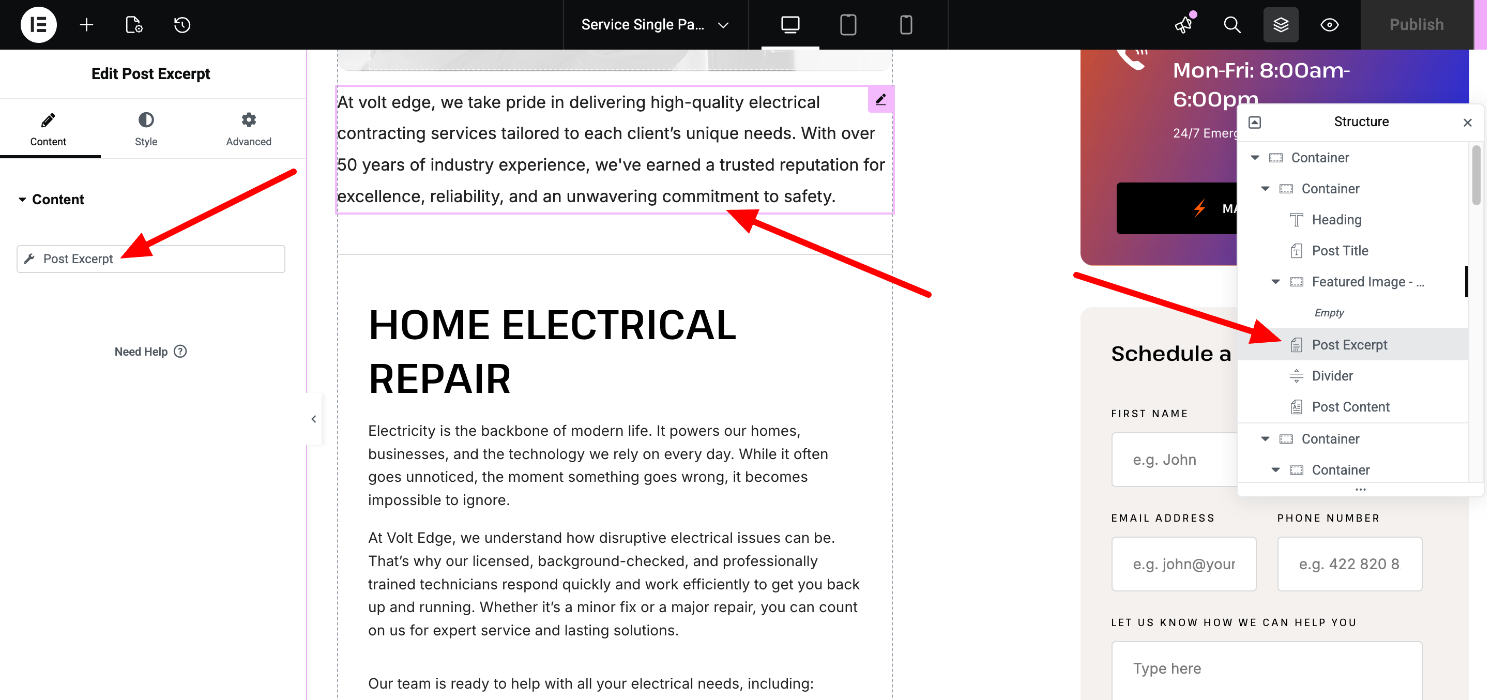
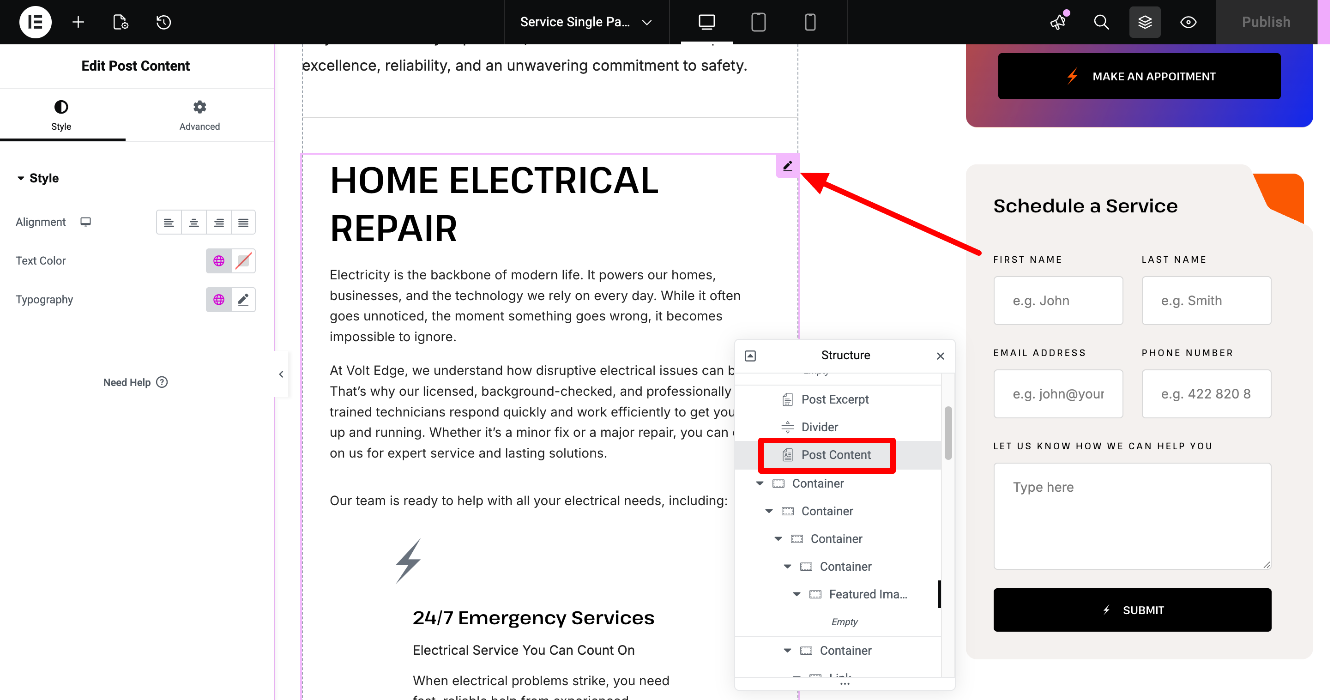
The template automatically displays the single-page content through the Post Content widget. You can edit each page’s content directly in the Elementor editor. Learn more at the end of this article.
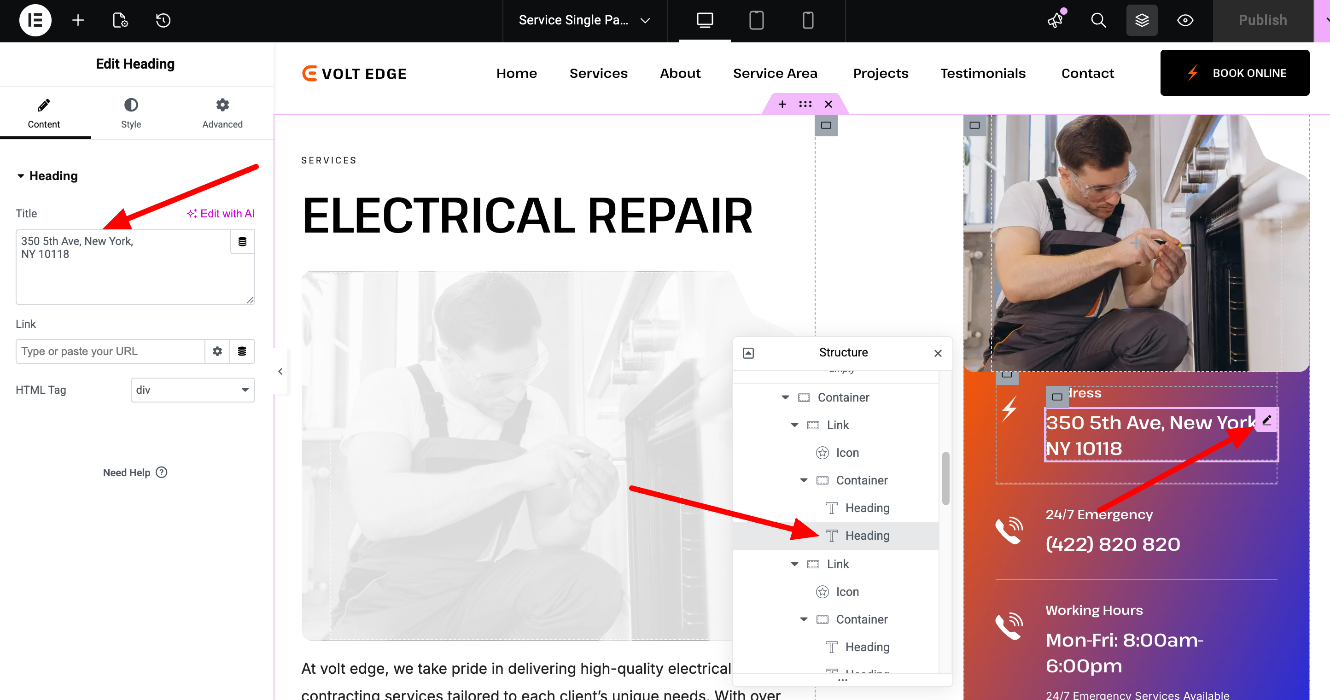
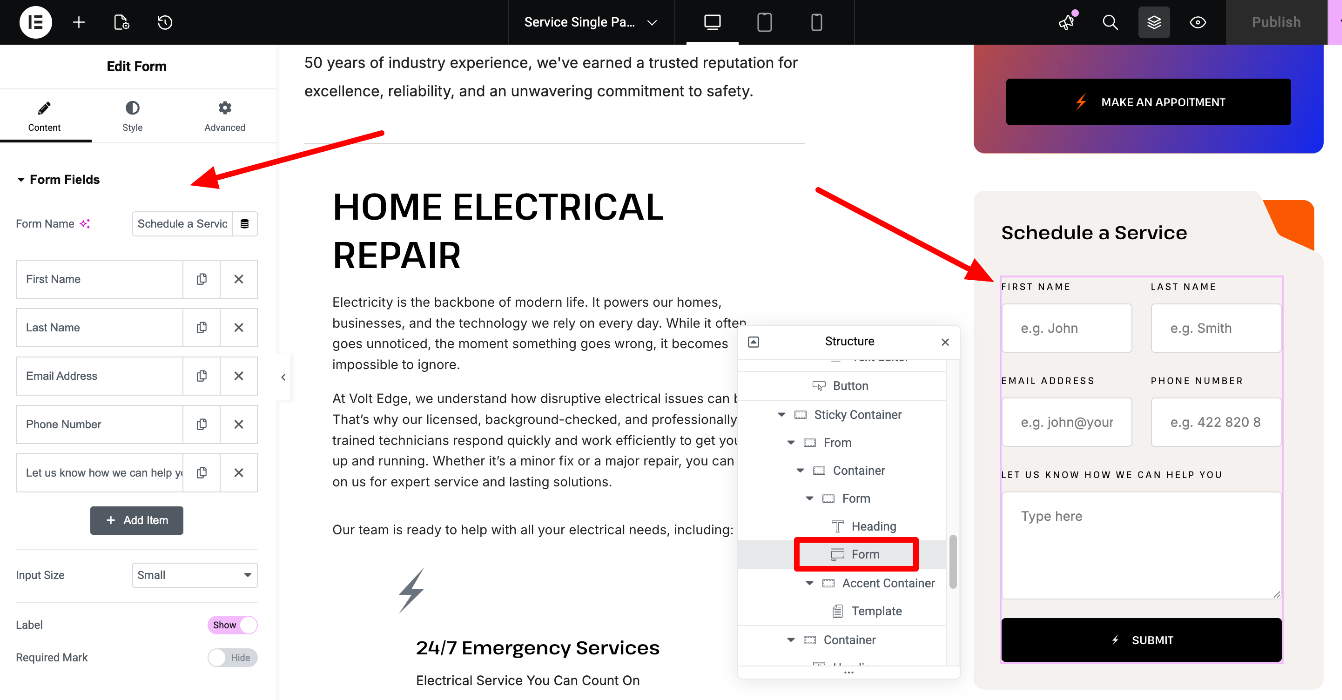
You can also edit the right sidebar of the services sub-pages in the Single page template:
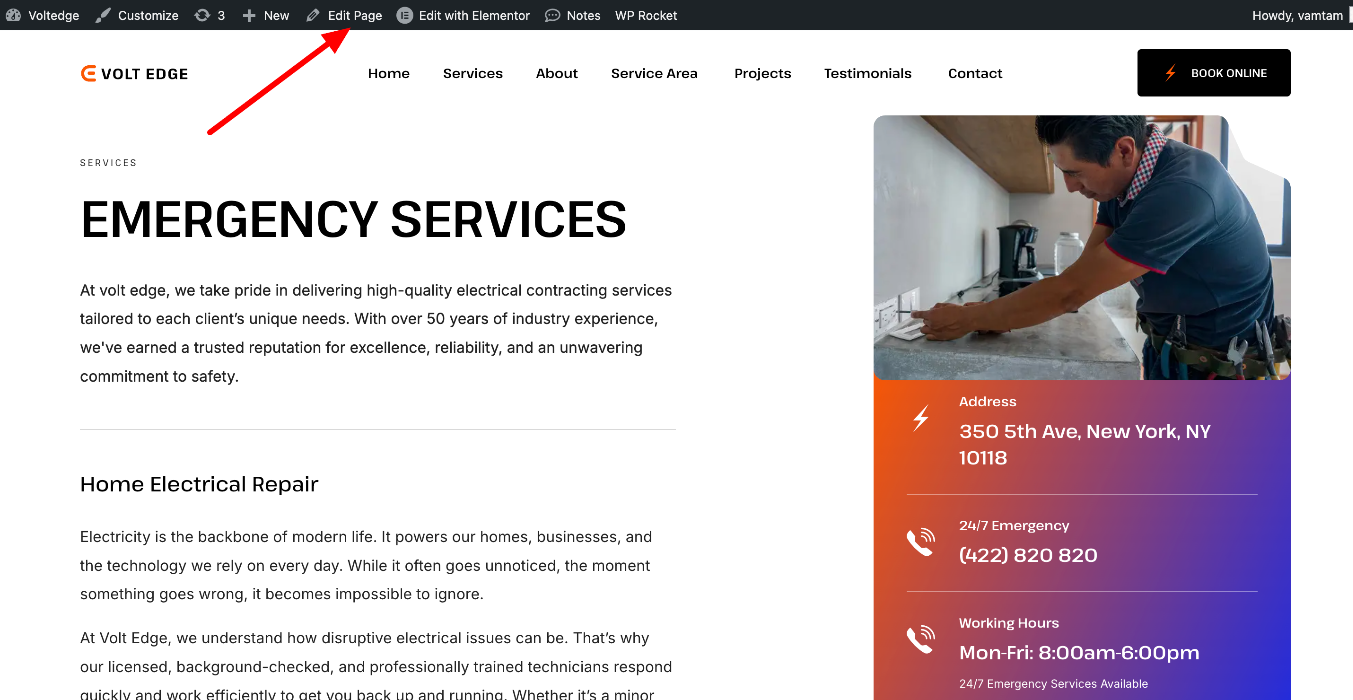
Next step: click on the "Edit Page" link of each Services sub-pages, to access and edit Title, Featured image, Excerpt, Custom fields, etc.:
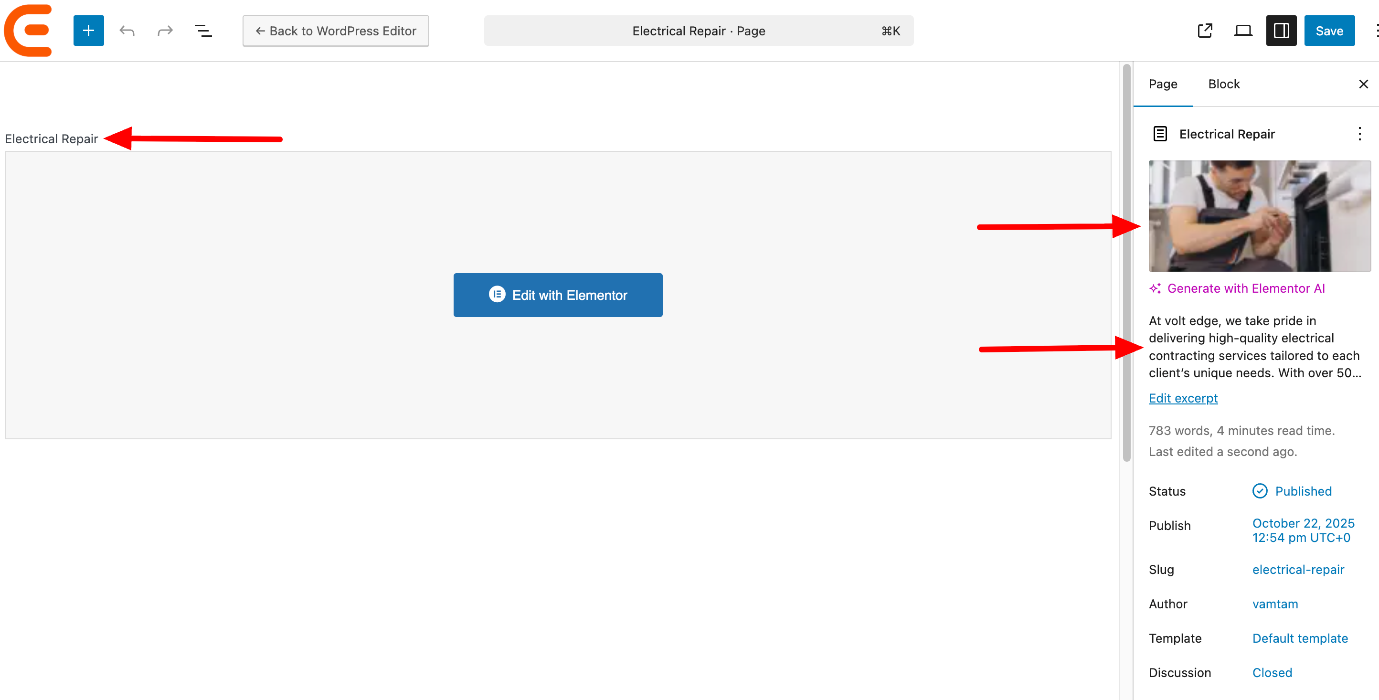
Edit the Title, Featured image, and Excerpt:
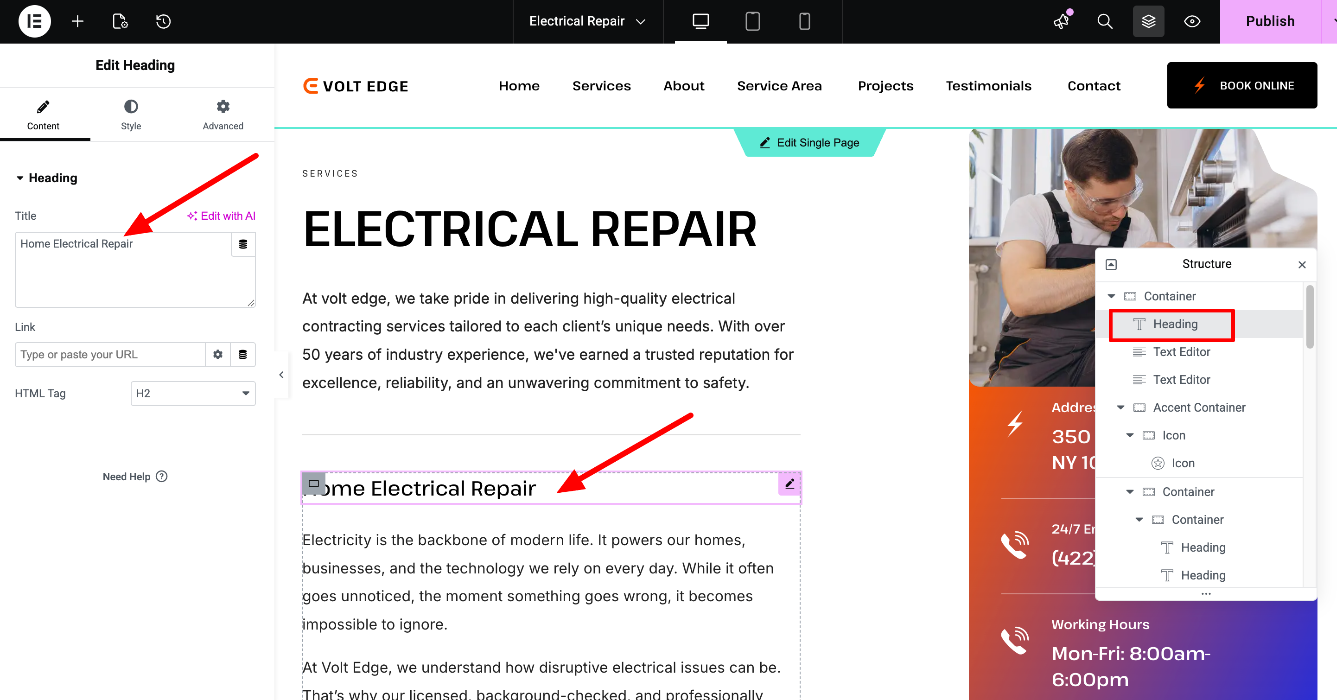
Click on "Edit with Elementor" to customize the page's content.
Edit the page's content easily, by locating each Elementor widget in the Navigator (The "Structure" section on the right)
Please check these guides for further information:
https://elementor.com/help/elementors-theme-builder/